Why do I need to issue an invoice?
If a guest requests an invoice or receipt, you as the host are responsible for providing it. Holidu facilitates the payment between you and your guest, and deducts our commission before your payout. Legally, however, you remain the service provider, so you are responsible for issuing invoices or receipts. Holidu cannot issue invoices to guests because we are not the legal provider of the accommodation. We only provide commission invoices to you.
Important points:
- Invoices must reflect the full amount paid by the guest.
- You can prepare a draft at any time, but you can only issue the invoice from the day the guest checks in.
- Invoices are available after the guest checks out.
- Local tax rules may differ, so check with a tax advisor if you are unsure.
Am I legally required to issue invoices?
Yes. Hosts are legally required to provide guests with an invoice or receipt for their stay. Professional hosts with a valid VAT number must issue an invoice at the end of each stay, whether or not the guest asks for one. This supports compliance with local tax and accounting regulations.
Note for hosts with properties in the Canary Islands (Spain)
If your property is located in the Canary Islands, mainland Spanish VAT (IVA) does not apply. Instead, the local indirect tax IGIC applies. Invoices for these properties should not include IVA but must follow IGIC rules.
What is the Guest Invoice Tool?
The Guest Invoice Tool is available in your Holidu host account. It helps you create invoices for your guests directly through Holidu.
- Self-service invoice creation: Generate, edit, and issue invoices for each confirmed booking.
- Flexible workflow: Start with a draft, review the details, and issue when ready.
- Extra services: Create additional invoices for add-ons such as meals, transfers, or e-bikes.
Once an invoice is issued, it cannot be edited or amended. If you are unsure, choose "Save and Close" to keep it as a draft. Selecting "Save and Issue" makes the invoice final. To correct an error, cancel the invoice and issue a new one.
Where to find the Guest Invoice Tool
You can access the tool in two ways:
Option 1: From the Financial tab
- Log in to your Holidu account. If you manage multiple properties, select the property associated with the booking.
- Go to the Financial tab on the left-hand side.
- Select Guest Invoices.
Option 2: From a booking
- Log in to your Holidu account. If you manage multiple properties, select the property associated with the booking.
- Go to the Booking tab on the left-hand side and select the booking you want to invoice.
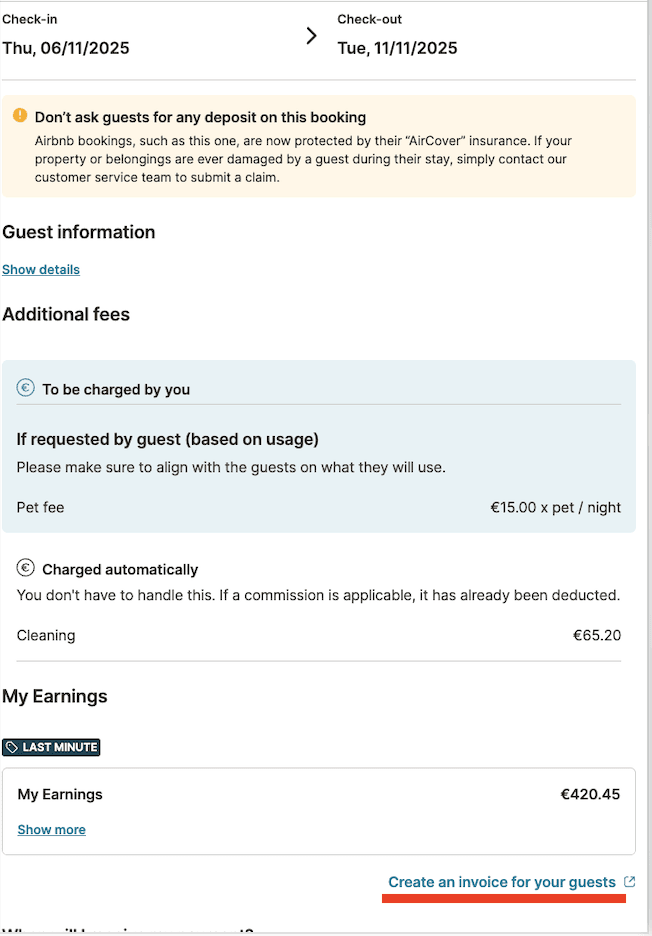
- Under My Earnings, click Create an invoice for your guests.
How to configure your guest invoice settings
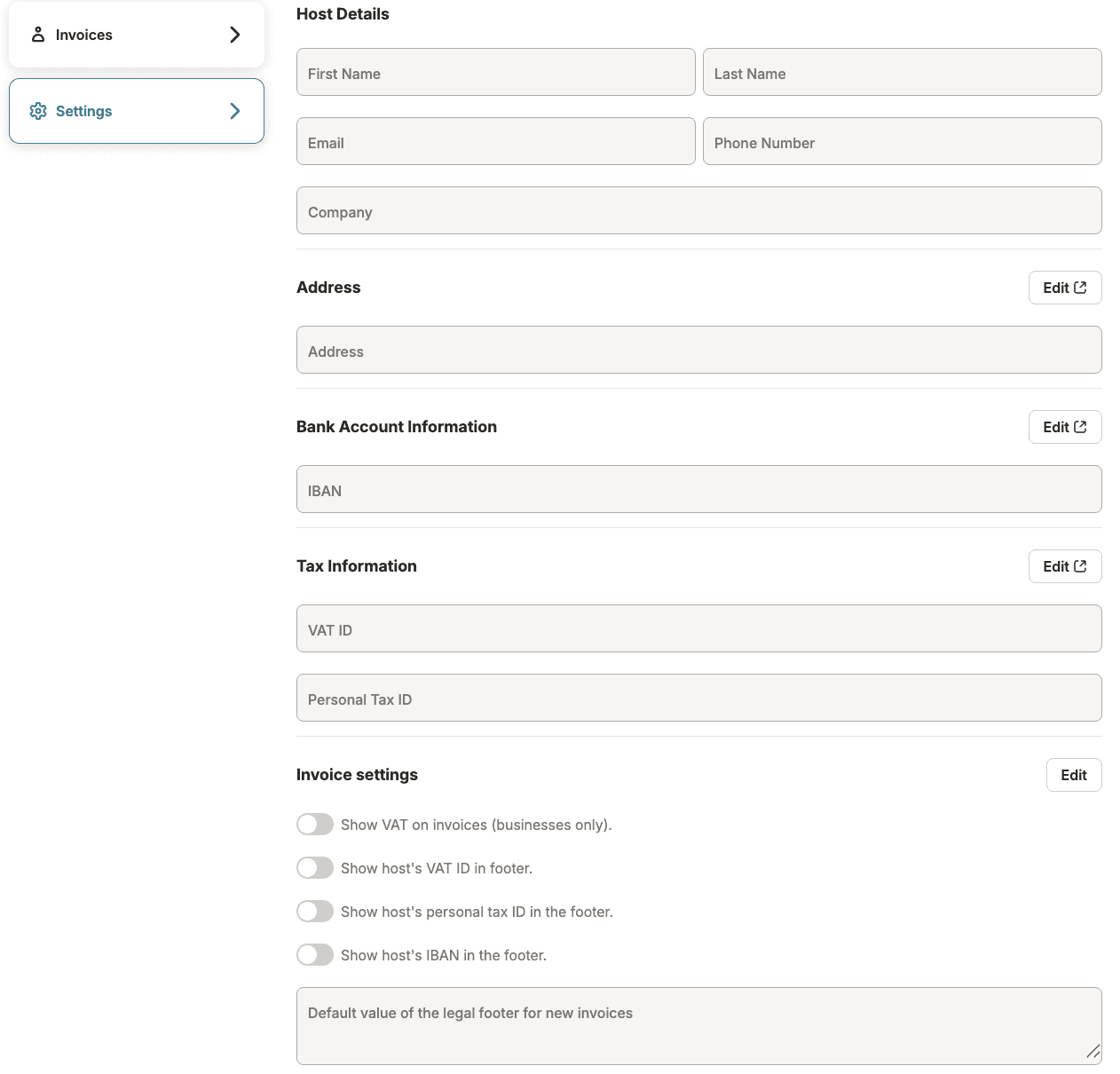
Go to the Settings section of your dashboard to make sure your invoices are professional and meet local tax requirements.
Update your host and business profile
- Host details: Check that your name, email, and company name are correct.
- Address: Use your legal business or primary residence address. Click Edit to update the street name, postal code, and city.
Choose which business issues the invoice
If you manage properties under more than one business, for example as an owner with a separate company, or when a management company handles the property for you, you can choose which business issues each invoice.
- Holidu automatically selects the business that applies to each booking. If it is not correct, you can change it before issuing the invoice.
- To manage profiles, go to Settings > Invoices. You can add, rename, edit, or delete a profile at any time.
- If you edit invoice details that do not match a saved profile, Holidu will ask if you want to save them as a new profile.
- Each profile keeps its own invoice number sequence and warns you before a duplicate number is used.
Customize invoice display settings
In Invoice settings, you can control what your guests see on their invoices:
- Show VAT: Turn this on if you are a registered business and need to display VAT on invoices.
- Footer details: Choose whether to show or hide your VAT ID, Personal Tax ID, or IBAN in the footer.
- Legal footer text: Add a custom message, such as a thank-you note or a legal disclaimer required in your region.
Step by step: create an invoice
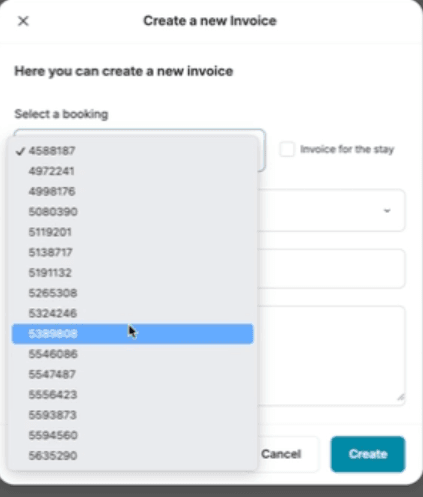
- Select booking details: Choose the booking ID and the preferred language. Holidu selects the issuing business automatically, but you can switch it here.
- Add guest information: Enter the guest's billing address and VAT ID, if applicable.
- Review and customize: The booking details, such as dates, property name, and total amount, are filled in automatically. You can add a personalized message under the Legal Footer, and it will appear on the invoice.
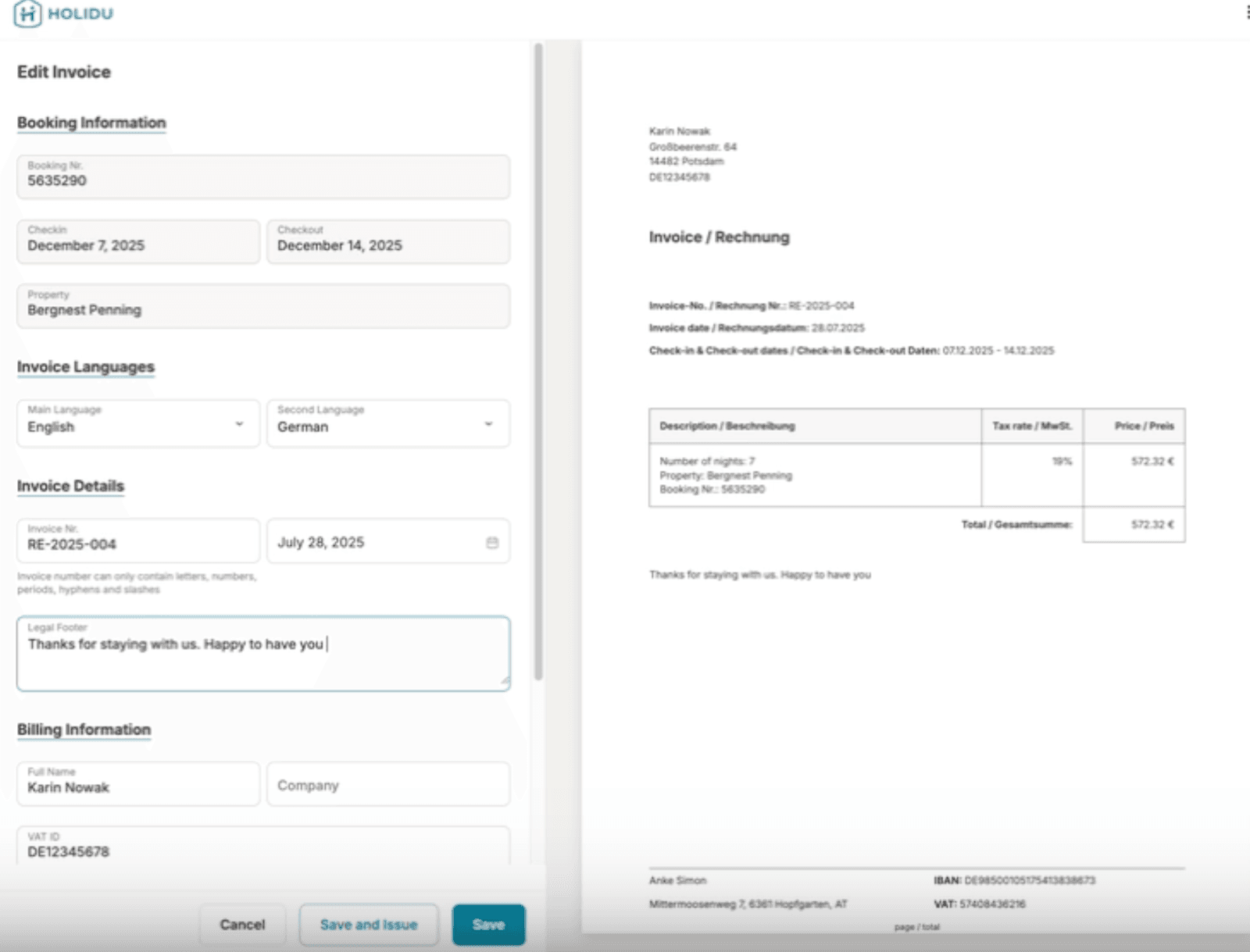
- Save or issue: Select "Save and Close" to keep a draft, or "Save and Issue" to finalize the invoice. Remember that issued invoices cannot be edited.
How to automate your workflow
- Set your business details and invoice display preferences once in Settings, so every new invoice is prefilled.
- Prepare drafts before check-in and review them when the guest checks out.
- If a draft is still pending after check-out, Holidu sends you a reminder by email.
Invoicing for extras
To charge for add-ons such as meals, transfers, or e-bikes, use the Additional Invoice option. This creates a separate invoice for the extra service.
Personal Tax ID for German hosts
If your property is in Germany, do not display your Personal Tax ID (SteuerID/IdNr.) on invoices. The field will be left empty. Use your Tax Number (Steuernummer) instead.
- Go to Settings and select Invoices in the Guest Invoices Tool.
- Locate the Tax Number (Steuernummer) field.
- Click Edit.
- Enter your valid Tax Number (Steuernummer).
- Save the settings.
Once saved, this number will appear by default on the invoice form.
Important reminders
- Always issue invoices for the full amount paid by the guest
Do you want to contact us?
We’re here to help. You can contact us directly if you need assistance or have questions.
Contact us